
143-002
Central Plaza is not suitable for Videoconferencing/Zoom connections as there is no camera installed nor are the microphones available to the room PC. A laptop can be used for this purpose but is not recommended due to the limitations of the inbuilt laptop camera and microphone.
The AV equipment is located in a locked space adjacent to the stage. For access during office hours, please contact VAVS on 4781 4643 or videoconferencing@jcu.edu.au
Equipment
- Video wall
- Mobile lectern - connectable at the raised stage or centre of the floor area
- Touch panel for all AV control
The system is programmed to turn on automatically Mo-Fr 8am-6pm to show the Digital Signage - Mini PC with wireless keyboard and mouse
- Lectern and wireless microphones
- Wireless Presenter
- Speakers (wall mounted on either side of video wall and in the open space)
Touch the screen to turn on the AV system
Touch Panel Operation
Operation
- Presentation - show media on the video wall.
- Audio - volume control.
- Exit - turn off system.
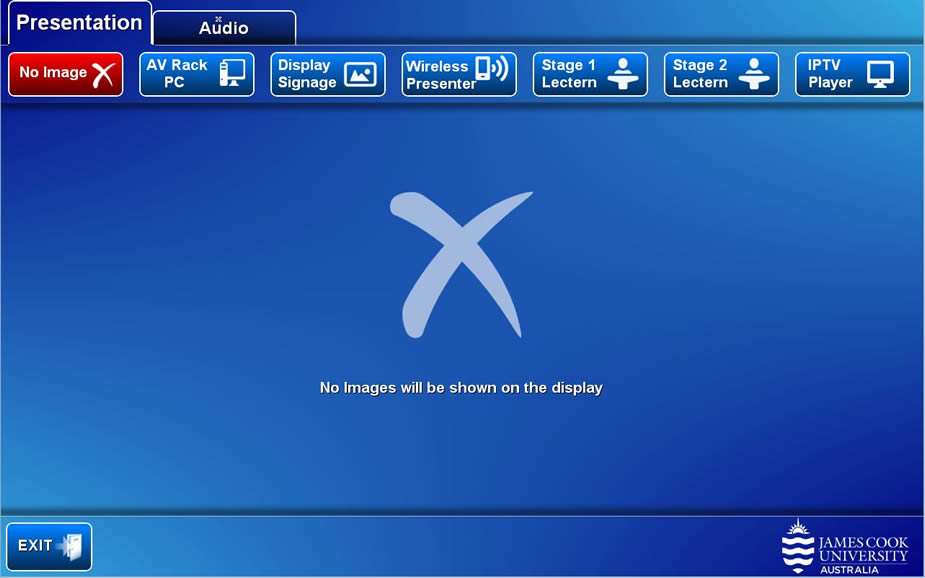
Show Presentation
- No Image - show nothing.
- AV Rack PC - show the mini PC.
- Display Signage - show the JCU branded news reel.
- Wireless Presenter - show the instructions for how to connect a BYOD (laptop, tablet, smart phone) wirelessly to the AV system.
Take note of the Room Name (IP address) and Code shown. Peruse this guide for instructions on how to connect. - IPTV - not available
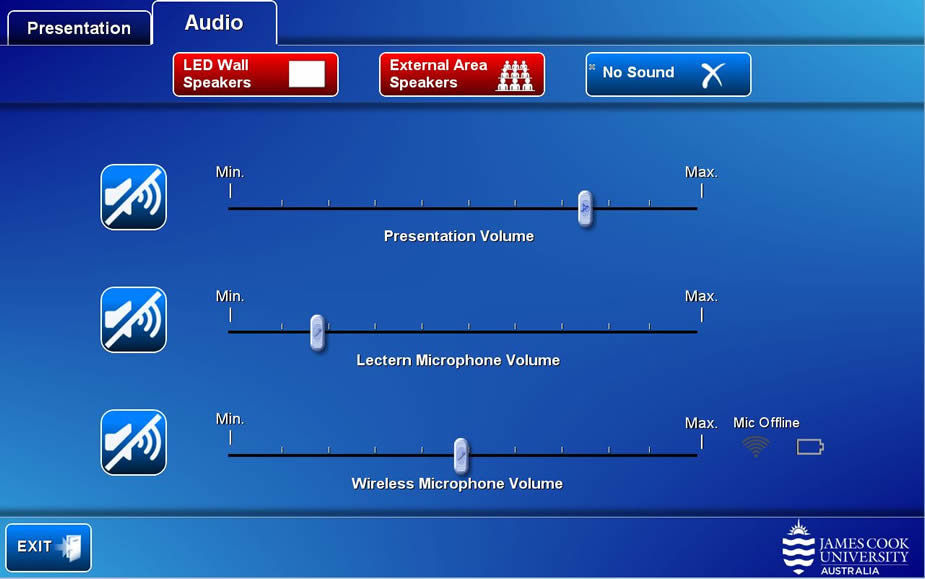
Two speaker pairs are located in this space
- LED Wall speakers - mounted on either side of the video wall,
- External area speakers - mounted in the open space below the waved roof.
- No Sound - mute all sound
Volume control
- Presentation Volume - touch and slide to adjust the playback volume of the mini PC and laptop.
- Lectern Microphone Volume - touch and slide to adjust the lectern microphone voice reinforcement through the speakers.
- Wireless Microphone Volume - touch and slide to adjust the wireless microphone voice reinforcement through the speakers.