
RDIM Step 3 - Archive Archiving and Publishing Guide Get Started
Get Started
- MRCMHR
- Future Students
- JCU Global Experience
- International Students
- Student experience
- Open Day
- How to apply
- Pathways to university
- Living on Campus
- Courses
- Publications
- Mature students
- Scholarships
- Entry options
- JCU Families
- JCU Heroes Programs
- Aboriginal and Torres Strait Islander in Marine Science
- Elite Athletes
- Defence
- Capability.Co
- AI@JCU
- AALL
- Current Students
- Student Ambassador Program
- New students
- JCU Orientation
- LearnJCU
- Placements
- EDQS
- Unicare Centre and Unicampus Kids
- Graduation
- Off-Campus Students
- JCU Job Ready
- Safety and Wellbeing
- JCU Prizes
- Professional Experience Placement
- Employability Edge
- Art of Academic Writing
- Art of Academic Editing
- Careers and Employability
- Health, Wellbeing and Belonging
- Career Ready Plan
- Careers at JCU
- Partners and Community
- School Outreach and Widening Participation
- Alumni
- International partnerships
- About JCU
- Reputation and Experience
- Chancellery
- Governance
- Celebrating 50 Years
- Academy
- Indigenous Engagement
- Education Division
- Research Festival
- Graduate Research School
- Research Division
- Research and Innovation Services
- CASE
- College of Business, Law and Governance
- College of Healthcare Sciences
- College of Medicine and Dentistry
- College of Science and Engineering
- MPE
- Anthropological Laboratory for Tropical Audiovisual Research (ALTAR)
- Rural Remote and Tropical Health Systems
- Agriculture Technology and Adoption Centre (AgTAC)
- Advanced Analytical Centre
- Australian Institute of Tropical Health and Medicine
- AMHHEC
- Aquaculture Solutions
- AMHRA
- JCU Digital Wellbeing Group
- ARCSTA
- Lions Marine Research Trust
- Australian Tropical Herbarium
- Australian Quantum & Classical Transport Physics Group
- Boating and Diving
- Clinical Psychedelic Research Lab
- Centre for Tropical Biosecurity
- Centre for Tropical Bioinformatics and Molecular Biology
- CITBA
- CMT
- Centre for Disaster Solutions
- CSTFA
- Cyclone Testing Station
- The Centre for Disaster Studies
- Daintree Rainforest Observatory
- Fletcherview
- JCU Eduquarium
- JCU Turtle Health Research
- MARFU
- Orpheus
- TESS
- JCU Ideas Lab
- CADSI
- CNL
- TARL
- eResearch
- Indigenous Education and Research Centre
- Past Course and Subject Handbooks
- Estate
- Work Health and Safety
- Staff
- Discover Nature at JCU
- Cyber Security Hub
- Association of Australian University Secretaries
- Services Division
- Environmental Research Complex [ERC]
- Foundation for Australian Literary Studies
- Gender Equity at JCU
- Give to JCU
- Indigenous Legal Needs Project
- Inherent Requirements
- IsoTropics Lab
- IT Services
- JCU Webinars
- JCU Events
- JCU Motorsports
- JCU Sport
- Library
- Mabo Decision: 30 years on
- Marine Geophysics Laboratory
- Office of the Vice Chancellor and President
- Outstanding Alumni
- Policy
- PAHL
- Queensland Research Centre for Peripheral Vascular Disease
- Rapid Assessment Unit
-
RDIM
- Introduction
- RDIM Overview
- My Responsibilities
- Research Data JCU Platform
- Step 1 - Plan
- Step 2 - Manage
- Step 3 - Archive
- Step 4 - Publish
- Step 5 - Reuse
- Step 6 - Review
- Step 7 - Dispose
-
Terminology
- Access Conditions (Open, Conditional, Restricted)
- Active Data
- Active Storage and Collaboration Options
- Citations
- Collaborator
- Completed Data
- Conditional Access
- Confidentiality
- Consent
- Contracts
- Copyright
- Creative Commons Licence
- Creative Commons Zero (CC0)
- Custodian
- Custodianship
- Data
- Data Creator
- Data Custodian
- Data Manager
- Digital Object Identifier (DOI)
- Data Package
- Data Papers
- Data Publication
- Data Record
- Data Repositories
- Data Retention
- Data Storage - Active Data or Working Data
- Data Storage - Completed Data
- Data Visualisation
- Data Wrangling (Cleaning)
- De-identifying Data
- Digital Object Identifier (DOI)
- DIKW Model
- Documentation
- DOI Minting Services
- Embargo
- Ethics and Ethical Clearance
- FAIR Data Principles
- File Formats
- File Names
- Folder Structures
- HDR Candidate
- Information
- Intellectual Property
- JCU Researcher
- Lead Investigator
- Moral Rights
- Open Access
- Primary Advisor
- Primary Materials
- Privacy and Personal Information
- Repositories
- Research Data
- Research (Data and Information) Asset
- Research (Data and Information) Asset Lifecycle
- Research Data JCU Platform
- Research Data Management Plan (RDMP)
- Research Information
- Research Project
- Restricted Access
- Retention
- Retention Rules for Specific Data Types
- Sensitive Data
- Storage
- Supporting Documents
- Triangulation, Data Linkage and Integrating Authorities
- Version Control
- Working Data
- Wrangling (Cleaning) Data
- Frequently Asked Questions
- Information Sheets
- Training Videos
- Site Map
- Contact Us
- Researcher Development Portal
- Roderick Centre for Australian Literature and Creative Writing
- Contextual Science for Tropical Coastal Ecosystems
- State of the Tropics
- Strategic Procurement
- Student profiles
- SWIRLnet
- TREAD
- TropEco for Staff and Students
- TropCOVID: Mapping COVID-19 Immunity in Far North Queensland
- TUDLab
- VAVS Home
- WHOCC for Vector-borne & NTDs
- Media
- Copyright and Terms of Use
- Australian Institute of Tropical Health & Medicine
- JCU Respect
- Pay review
- Research
🚀 This section gives you essential context and steps to get up and running with archiving and publishing your data at JCU. We’ll show you what to do and when, how to use the Research Data JCU system, and where to get help if you're stuck.
🖨️ Save or Print: You can save or print this page as a PDF using Ctrl+P (Windows) or Cmd+P (Mac).
🔙 Back to Table of Contents
🗓️ What to Do and When
HDR Milestone | Action | Resources in this Guide |
|---|---|---|
Pre-completion | Review this guide. Identify data for archiving and (optionally) publishing. Start preparing files and documentation. | Identify Data for Archiving, Exemptions, Prepare Data for Archiving (start) |
By Completion | Archive any data you generated that is needed to support your findings or future research. You can request an exemption in some cases—although a Data Record may still be required. | Exemptions, Prepare Data for Archiving, Archive Data |
Anytime | Recommended: Publish your data to support transparency and your research career. Data should be as open as possible, but can be as closed as necessary. | Publish Data |
Using the Research Data JCU Platform

❓Need help with Research Data JCU? Jump to our Troubleshooting Guide!
You’ll use the Research Data JCU platform to create a Data Record and (recommended) a Data Publication—this guide covers both:
🔍 Not sure which is which? Here's a quick comparison:
Data Records vs. Data Publications: What's the Difference?
Data Record | Data Publication | |
|---|---|---|
Purpose | Archive that safeguards research integrity by allowing findings to be traced back to well-documented data. Required by the Code and essential for validating your results if challenged. | Public, citable output that supports research transparency by making selected data openly available and findable. Enhances visibility, trust, and impact—and helps meet funder and journal expectations. |
Audience | You, your advisors, your future self (at JCU), our team, and—if necessary—those responsible for assessing research integrity. | Same as Data Record—plus external audiences such as other researchers, journals, funders, and the public. |
Access Level | 🔐Non-public. Designated JCU roles have read or read/write access (see How to Login section). | 🔓 Metadata is public. |
Content | Full dataset and supporting documentation—create one per project (e.g., PhD) or one per data chapter. | Full dataset or a subset to support a manuscript submission. |
Metadata Relationship | Required to create a Data Publication. | Created from a Data Record. Some fields pre-fill. |
DOI? | ❌ No DOI. | ✅ DOI available (tick the box) for Open or Conditional access. |
Editable? | Yes – technically editable, as they’re never “submitted.” But once data is archived, changes are discouraged to preserve research integrity. | No – becomes read-only once submitted for review. |
Appears on GECO Profile? | ❌ No | ✅ Yes, if published via Research Data JCU (you will need to “show”) |
❓Troubleshooting Guide
Can’t see existing records?
This sometimes happens when your student identity transitions to a staff account—a common occurrence with short-term contracts. It's an easy fix, but we know it’s frustrating.
✉️ Email: researchdata@jcu.edu.au and we’ll sort it out quickly.
Trouble saving your RDMP or Data Record?
You must complete the following fields before saving:
- Project Name (Project tab for RDMP, Why? tab for Data Record)
- Lead Investigator (People tab for RDMP, Who? tab for Data Record)
If you see an incomplete error message, double-check these fields.
Still stuck? Don’t worry—just contact the Research Data team and we’ll help.
How to login:
- Click on Research Data JCU
- Select the (green) centre tile, Access Research Data JCU
- First time users will be invited to Login to Federated Services (AAF)
- Select James Cook University as your organisation
- You will be presented with the JCU single-sign on screens, log in as usual.
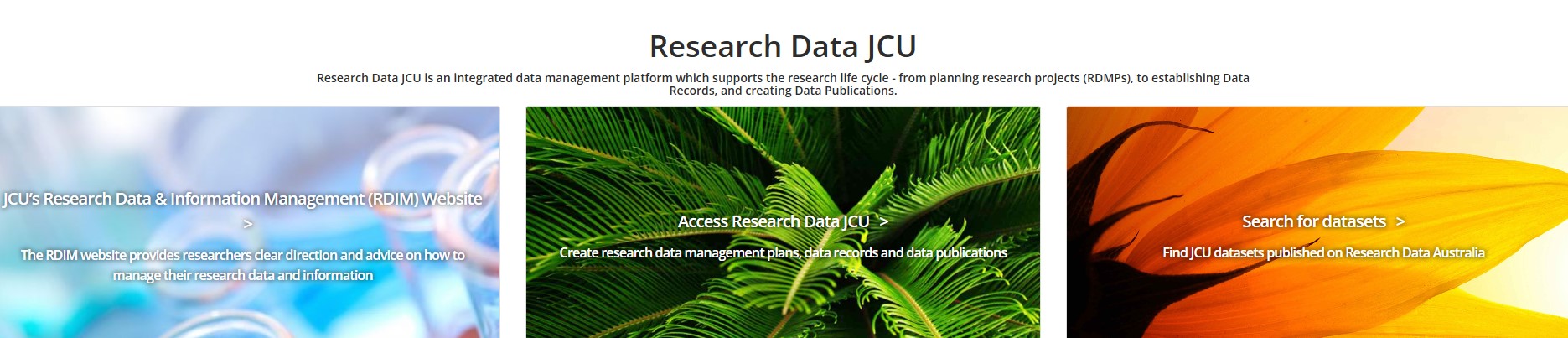
Once logged in, the platform includes built-in help text (click on the ? icon) and prompts to guide you through each metadata field.
Access varies by role—some have edit access, others can only view the record.
🔗 Review roles and access permissions information for full details.
How to Create a Data Record:
This step involves creating a Data Record and either uploading your data or recording its storage location.
Choose either method:
1. From your Research Data Management Plan (RDMP)
If you have an RDMP (e.g., all HDR candidates from 2021 onwards)
→ Navigate to Plan > View and Update RDMP, then click on the record title.
→ Use the"Create a data record from this plan" button.
2. From the main menu
→ Go to Archive > Create Data Record to start a new record.
Note: This path will also prompt you to link to your RDMP. This is optional, but helpful for pre-filling project-based metadata)
🔗 Creating a Data Record (with screenshots)
(Visit this page for a visual guide and screenshots, if you need additional assistance)
How to Create a Data Publication:
This step involves creating a Data Publication and submitting it for review by our team.
Choose either method:
1. From your Data Record
→ Navigate to Archive > View and Update Data Record, then click on the record title.
→ Use the "Create a data Publication from this record" button.
2. From the main menu
→ Go to Publish> Create a Data Publication
→ Link to a Data Record when prompted in the Start tab.
Note: You must have a “Data record related to this publication (*)” to proceed. This will be pre-filled if you selected the first method.
🔗 Creating a Data Publication (with screenshots)
(Visit this page for a visual guide and screenshots, if you need additional assistance)
Where to Get Help:
Throughout this guide, you'll see references to support options and troubleshooting tips. Here's a quick summary of where to go if you get stuck or need more detail:
- Use the built-in ? icons in Research Data JCU for contextual help
- ✉️ Email the Research Data team: researchdata@jcu.edu.au
- Drop into Research Hour, every Wednesday on Zoom @ 10 AM.
- 🔐 Use ServiceNow (login required):
- Fill out a Research Enquiries form
- Search our Knowledge Base Articles (also available using JCU Assist in Teams)
🖨️ Save or Print: You can save or print this page as a PDF using Ctrl+P (Windows) or Cmd+P (Mac).
🔙 Back to Table of Contents