
Current Students MyStudent Portal
MyStudent Portal
- MRCMHR
- Future Students
- JCU Global Experience
- International Students
- Student experience
- Open Day
- How to apply
- Pathways to university
- Living on Campus
- Courses
- Publications
- Mature students
- Scholarships
- Entry options
- JCU Families
- JCU Heroes Programs
- Aboriginal and Torres Strait Islander in Marine Science
- Elite Athletes
- Defence
- Capability.Co
- AI@JCU
- AALL
-
Current Students
- Current International students
-
Enrolment
- Enrol online
- New students enrol
- Course Enrolment Planners
- Change course (Variation to Study)
- Return to study (Variation to Study)
- Transfer campus (Variation to Study)
- Withdraw from subjects or your course
- Applying for Credit
- Student Centre and Enrolment Team Contacts
- Enrolment Terminology
- JCU Flex FAQs
-
Fees & Financial Support
- Domestic undergraduate subject fees
- Financial support
- Defer your fees
- Pay your fees
- SLE & HELP Balance
- Student Services and Amenities Fee (SSA Fee)
- Postgraduate subject fees
- Commonwealth Prac Payment
- Refunds and withdrawal under special circumstances
- Penalties for unpaid fees and late withdrawals
- Incidental & Administration Fees
- Eligibility Conditions for Commonwealth Assistance
- Unique Student Identifier (USI)
- Class Registration
- Assessment and results
- Support
- Academic Calendars
- Student Life
- Learning Online
- The Learning Centre
- Forms
- Safety
- Student Ambassador Program
- New students
- JCU Orientation
- LearnJCU
- Placements
- EDQS
- Unicare Centre and Unicampus Kids
- Graduation
- Off-Campus Students
- JCU Job Ready
- Safety and Wellbeing
- JCU Prizes
- Professional Experience Placement
- Employability Edge
- Art of Academic Writing
- Art of Academic Editing
- Careers and Employability
- Health, Wellbeing and Belonging
- Career Ready Plan
- Careers at JCU
- Partners and Community
- School Outreach and Widening Participation
- Alumni
- International partnerships
- About JCU
- Reputation and Experience
- Chancellery
- Governance
- Celebrating 50 Years
- Academy
- Indigenous Engagement
- Education Division
- Research Festival
- Graduate Research School
- Research Division
- Research and Innovation Services
- CASE
- College of Business, Law and Governance
- College of Healthcare Sciences
- College of Medicine and Dentistry
- College of Science and Engineering
- MPE
- Anthropological Laboratory for Tropical Audiovisual Research (ALTAR)
- Rural Remote and Tropical Health Systems
- Agriculture Technology and Adoption Centre (AgTAC)
- Advanced Analytical Centre
- Australian Institute of Tropical Health and Medicine
- AMHHEC
- Aquaculture Solutions
- AMHRA
- JCU Digital Wellbeing Group
- ARCSTA
- Lions Marine Research Trust
- Australian Tropical Herbarium
- Australian Quantum & Classical Transport Physics Group
- Boating and Diving
- Clinical Psychedelic Research Lab
- Centre for Tropical Biosecurity
- Centre for Tropical Bioinformatics and Molecular Biology
- CITBA
- CMT
- Centre for Disaster Solutions
- CSTFA
- Cyclone Testing Station
- The Centre for Disaster Studies
- Daintree Rainforest Observatory
- Fletcherview
- JCU Eduquarium
- JCU Turtle Health Research
- MARFU
- Orpheus
- TESS
- JCU Ideas Lab
- CADSI
- CNL
- TARL
- eResearch
- Indigenous Education and Research Centre
- Past Course and Subject Handbooks
- Estate
- Work Health and Safety
- Staff
- Discover Nature at JCU
- Cyber Security Hub
- Association of Australian University Secretaries
- Services Division
- Environmental Research Complex [ERC]
- Foundation for Australian Literary Studies
- Gender Equity at JCU
- Give to JCU
- Indigenous Legal Needs Project
- Inherent Requirements
- IsoTropics Lab
- IT Services
- JCU Webinars
- JCU Events
- JCU Motorsports
- JCU Sport
- Library
- Mabo Decision: 30 years on
- Marine Geophysics Laboratory
- Office of the Vice Chancellor and President
- Outstanding Alumni
- Policy
- PAHL
- Queensland Research Centre for Peripheral Vascular Disease
- Rapid Assessment Unit
- RDIM
- Researcher Development Portal
- Roderick Centre for Australian Literature and Creative Writing
- Contextual Science for Tropical Coastal Ecosystems
- State of the Tropics
- Strategic Procurement
- Student profiles
- SWIRLnet
- TREAD
- TropEco for Staff and Students
- TropCOVID: Mapping COVID-19 Immunity in Far North Queensland
- TUDLab
- VAVS Home
- WHOCC for Vector-borne & NTDs
- Media
- Copyright and Terms of Use
- Australian Institute of Tropical Health & Medicine
- JCU Respect
- Pay review
- Research
Welcome to MyStudent
The MyStudent Portal is your personalised gateway to university life, designed to give you full control over your studies and academic journey. Whether you're enrolling in classes, submitting forms, tracking tasks, updating your personal details or managing your finances, MyStudent makes it easy to manage everything from your dashboard.
Log into MyStudent here using JCU Single Sign On. If it's your first time logging in, you'll need to accept the terms and conditions.
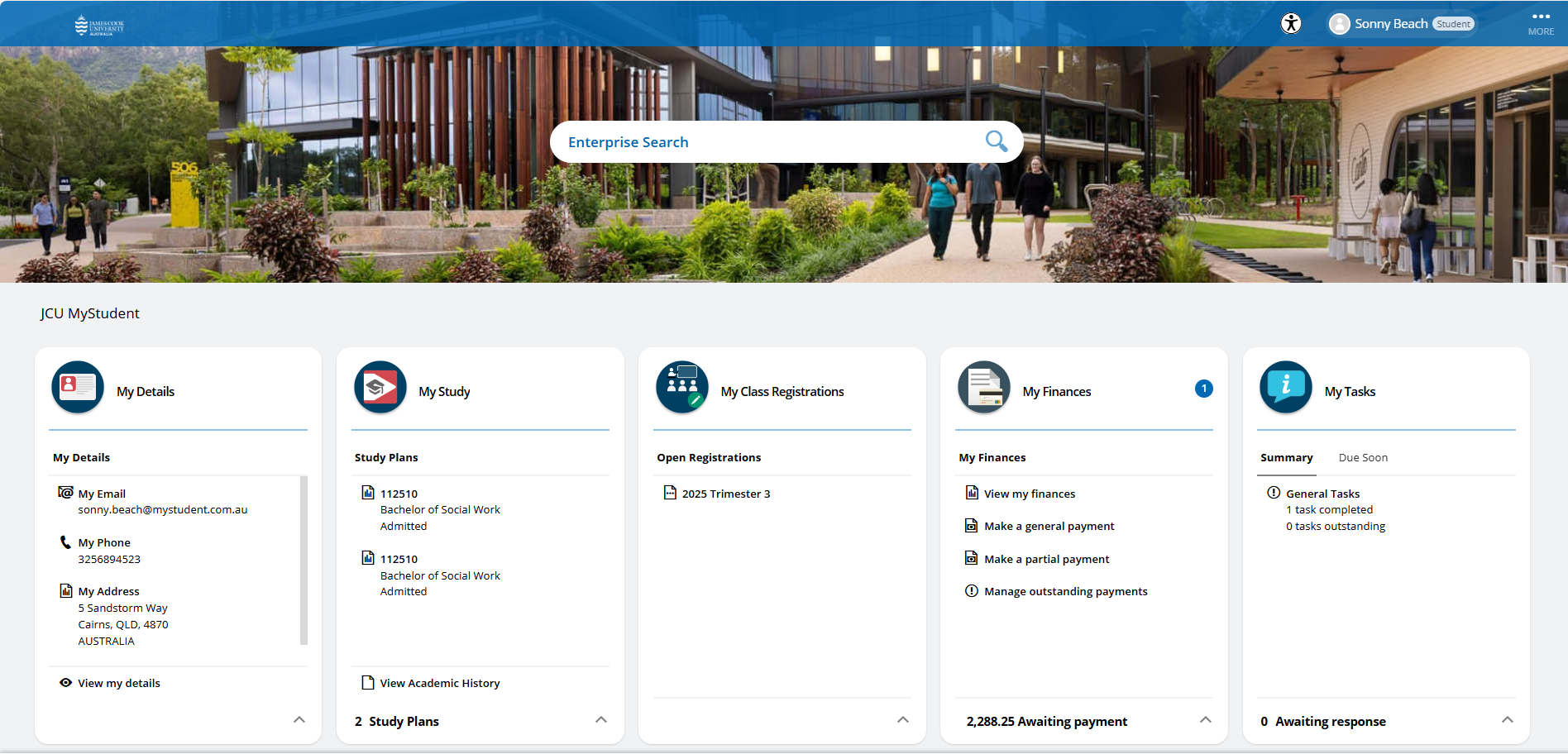
Image: MyStudent Dashboard
Introducing MyStudent
MyStudent is your brand-new student portal — designed to make studying, managing uni life, and staying connected easier than ever. Get ready for a simpler, smarter way to access everything you need.
My Details
Manage your personal details and check sanctions.
My Tasks
Manage your tasks before you enrol.
My Study - Plan and Enrol
Build your study plan, schedule subjects and enrol in MyStudent.
My Class Registrations
How to register for classes in MyStudent (not applicable for Singapore).
Grades and Graduation
How to find your course progression and graduation information in MyStudent.
MyStudent's key functions
Check and update your contact, emergency contact and address details, check and action any sanctions, view important documents, e.g. your Commonwealth Assistance Notice and if you have a scholarship, you’ll find the details here.
My Study displays your study plans for all courses you’re admitted to. You can explore your course structure, choose components to build your study plan, schedule them into study periods and enrol. Your submitted Government Assistance forms will also appear here. Additionally, My Study lets you request enrolment advice, academic transcripts, and withdraw from subjects.
Need help with enrolment in MyStudent?
Check out these resources:
MyStudent Guide – a comprehensive step-by-step guide.
Enrolment Quick Reference Guide – a handy summary for quick answers.
Register into classes for your enrolled subjects.
Important note: The class location format in MyStudent shows the location as: Room, Building, Campus, whereas other JCU systems, including the Publish Timetable use this format: Building-Room. Please take extra care when checking your class details to ensure you attend the correct building and room - particularly on the Townsville campus where both identifiers are numeric.
Students at JCU Singapore and Brisbane will see this tile on their dashboard; however, this feature is currently unavailable for those campuses. Please continue using your existing timetable and class registration process.
This section displays tasks to complete before enrolling. Tasks can include things like confirming your personal, cultural and disability details, providing your Unique Student Identifier (USI) and completing Commonwealth Assistance forms.
View and manage your tuition and SSA fees and payments through a streamlined payment experience. If you are eligible to defer your fees, you'll find available Government Assistance forms under the My Finances Forms tab, or select a payment option in the Transactions tab. Approved Government Assistance forms appear in the Summary tab.
Pay fees via credit card via the Transactions tab. Here you can also make general and partial payments. Refer to the MyStudent Guide for help.
If you're studying at JCU Singapore, the My Finances tile will appear on your MyStudent dashboard but this feature is not available to you. Please continue using your current process for managing finances.
Your calendar will display key academic dates and class registration schedules for any classes you've successfully registered for.
The Forms tile shows all the forms available for you to complete and submit in MyStudent. You’ll also see any forms you’ve started but haven’t finished, as well as submitted forms that are still being processed. You can view, draft, and submit forms directly from this section. Once completed, you can download a PDF copy of your submission for your records.
Note: any course applications you have commenced but not yet submitted in MyStudent under My Applications and Offers will be saved to the Forms section rather than My Applications and Offers.
FAQs
If your subjects aren't scheduled into study periods for future years and you are unable to schedule them, e.g. you see this message: No years available to select from, you will need to wait until enrolments open for that year. Check the enrolment page for details.
MyStudent will retrieve your data from the same system that eStudent currently uses. This means all your existing data will automatically appear in MyStudent when it goes live.
We’ll keep this page updated with the latest information as we approach the MyStudent launch. You can also stay informed by checking JCU Current Students social media channels, the Student Bulletin, and InfoByte emails.
In MyStudent, go to the My Study tile and select your course. Go to the Overview tab on the left-hand side. This shows your academic history for that course and the status of your subjects, including passed, failed, enrolled and planned. Your result shows under the subject name. Selecting the Academic history button provides the same overview for all courses you've commenced at JCU.
The class location format in MyStudent shows the location as: Room, Building, Campus, whereas other JCU systems, including the Publish Timetable use this format: Buildling-Room. Please take extra care when checking your class details to ensure you attend the correct building and room - particularly on the Townsville campus where both identifiers are numeric.
- You may have mandatory tasks to complete before enrolling, or you may have a sanction. In My Study, check the Overview tab. This will show any outstanding tasks and sanctions.
- Check that you have selected a subject offering (where multiple offerings exist) on the subject card in Plan and Enrol.
- If you see an 'Unsatisfied Requisites' message on a subject card, it means that there are other subjects you are required to complete before enrolling in that subject.
- The Enrol button will not appear for a study period in the following year until enrolments open.